Batch supported — up to 10 videos, each enhanced with your settings(MP4, MOV, WebM — up to 500 MB)
Try these
Batch supported — up to 10 videos, each enhanced with your settings(MP4, MOV, WebM — up to 500 MB)
Try these
Upload a clip and the UpscaleAI video enhancer upscales soft, low quality footage into cleaner 4K, smooths motion to 60fps, and rebuilds real detail instead of stretching pixels.
Start Upscaling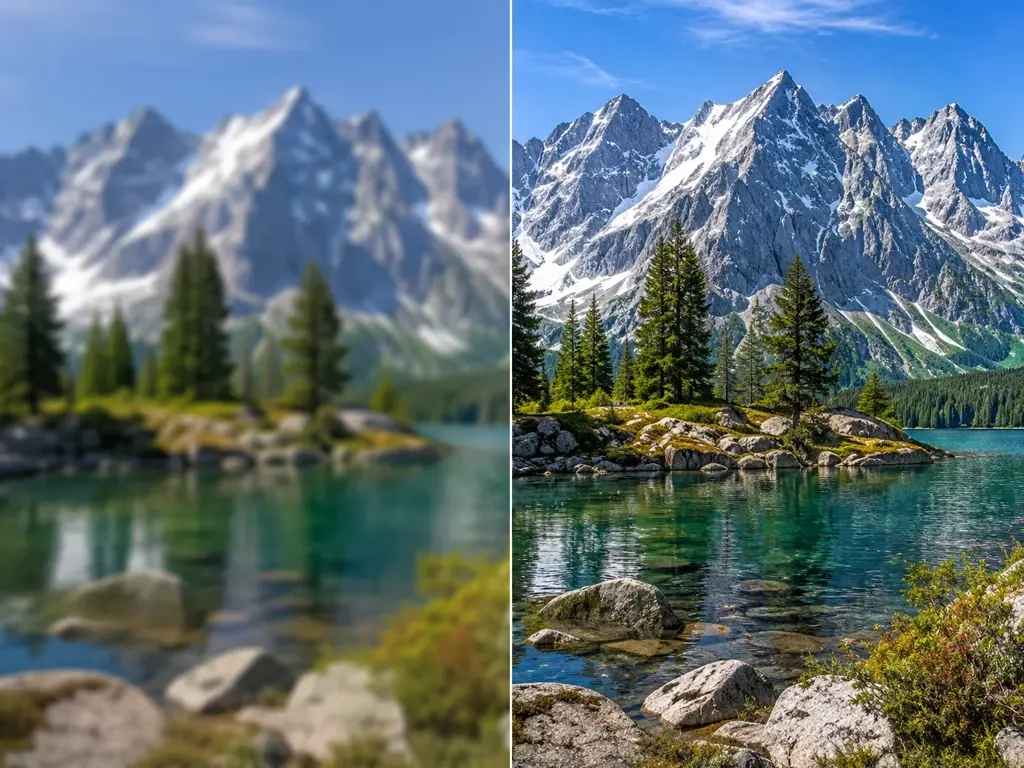
Four capabilities decide how your footage looks after processing, from resolution to noise.
Feed in a 720p clip and this video upscaler reconstructs edges and textures up to 4K, so faces and fine lines return as real detail instead of a blur stretched wider. The video enhancer rebuilds content that fits each frame, which is why 4K stays the ceiling for video and the result tracks your original footage.

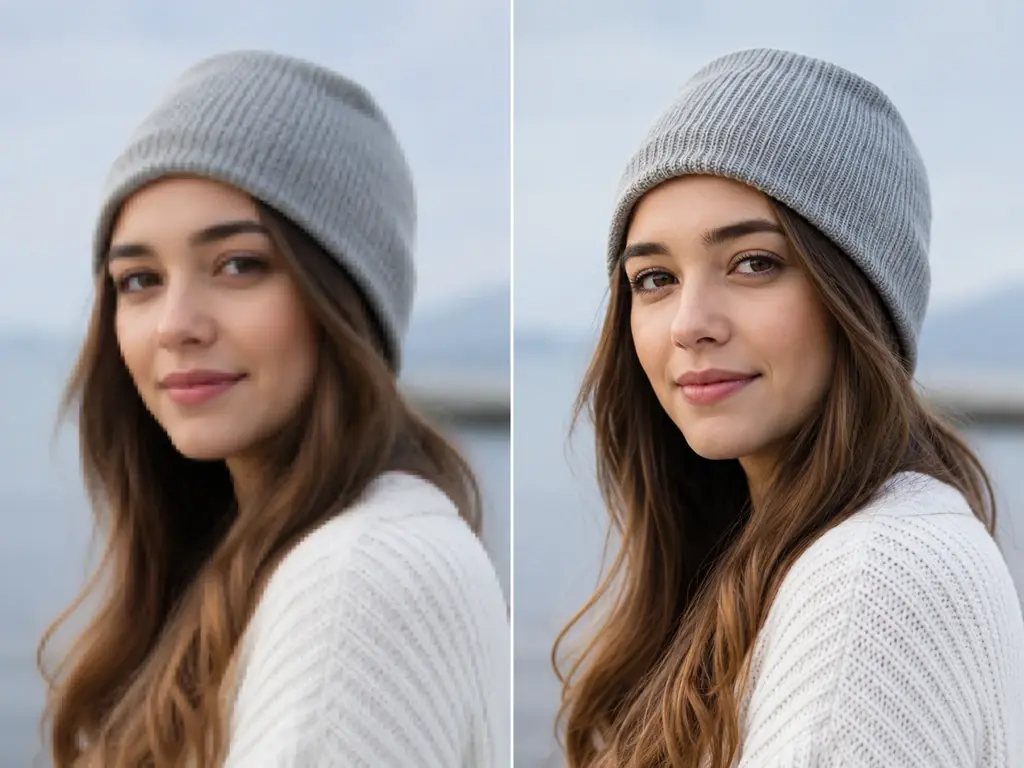
When a clip looks soft or washed out, the video quality enhancer rebuilds texture and tightens edges to improve video quality across the shot. It works to fix blurry video caused by heavy compression, though badly damaged frames will not always return fully, since the tool reconstructs likely detail rather than inventing what was never recorded.
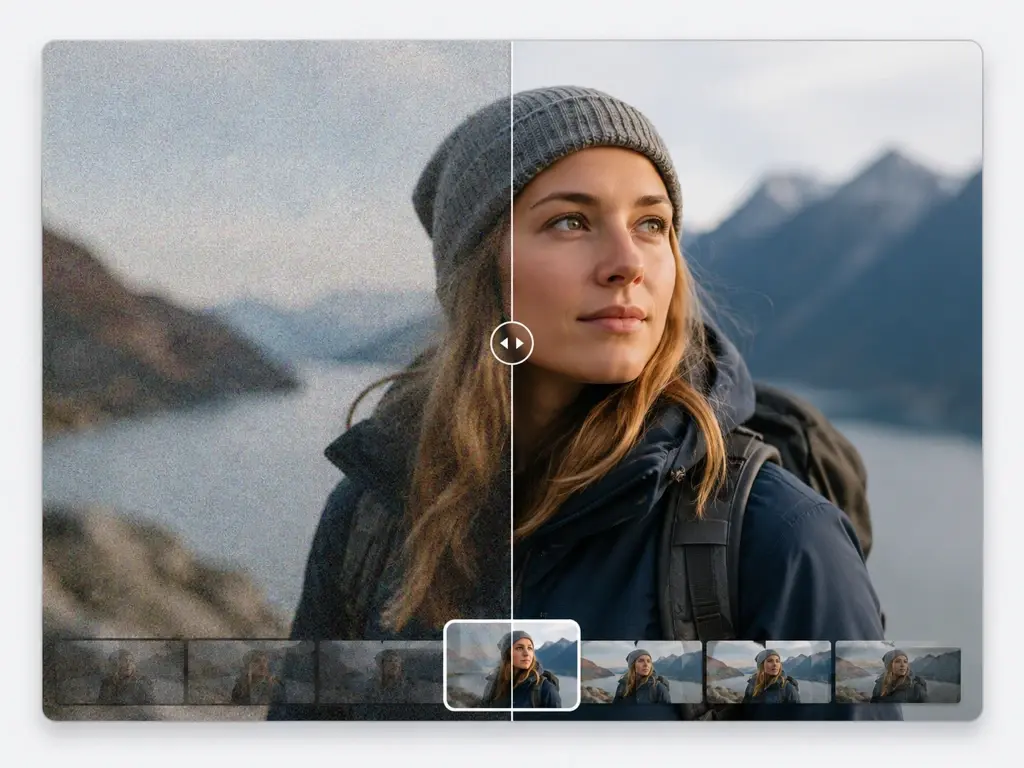
Grain, blocky compression, and speckle pull attention away from the subject. The built in video denoiser clears that noise and the artifacts left when a clip is encoded again, leaving a cleaner picture that holds up once you scale it larger. Reach for this video enhancer when a night shot or a shared clip looks busy with static.
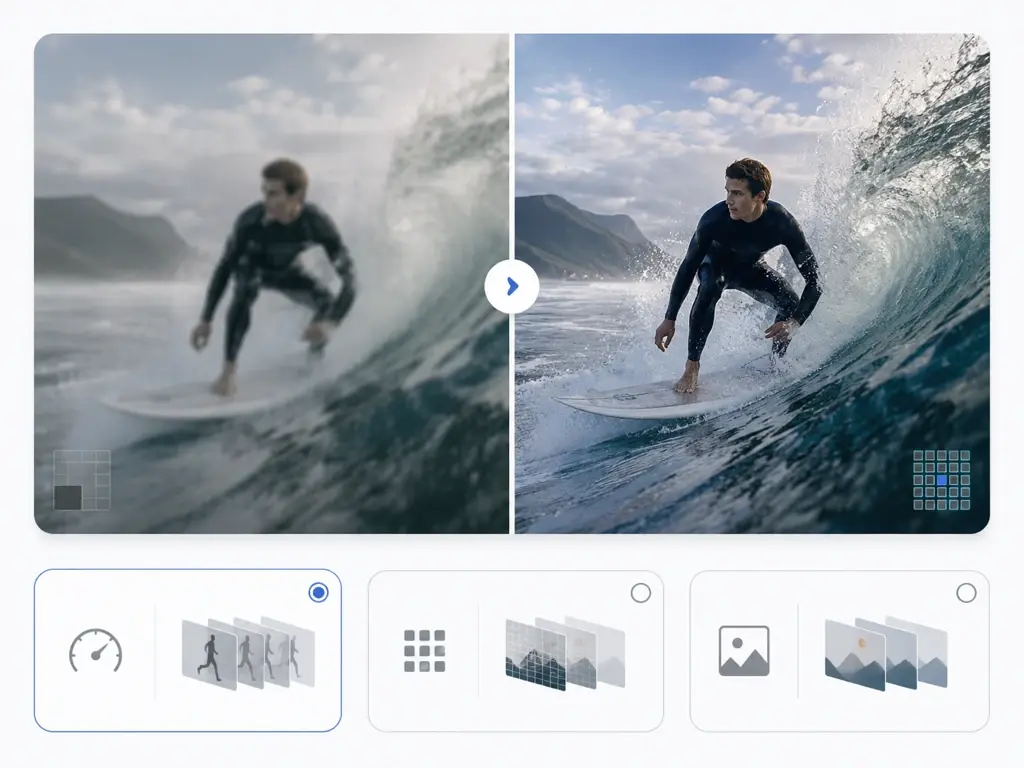
As an ai video enhancer, UpscaleAI reads your file and routes it to a fitting Topaz video model, then adds motion interpolation so a choppy clip plays back smoothly at 60fps. For footage that was generated or squeezed by compression, it works to add real detail back, and you can still switch the model by hand when you want a different pass.
From upload to a finished 4K download, here is the full video enhance path.
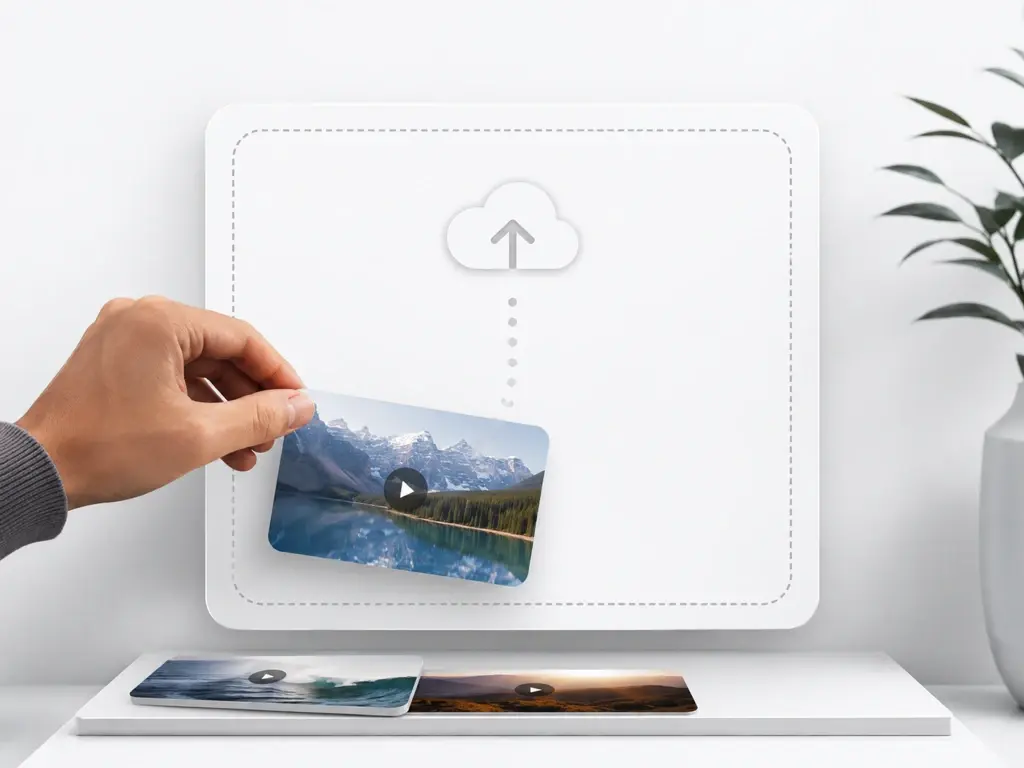
Drag in your footage or click to select it, using MP4 or MOV files, and add several clips at once when you want to enhance video in a batch. Your files upload to the cloud for processing rather than staying on your machine.
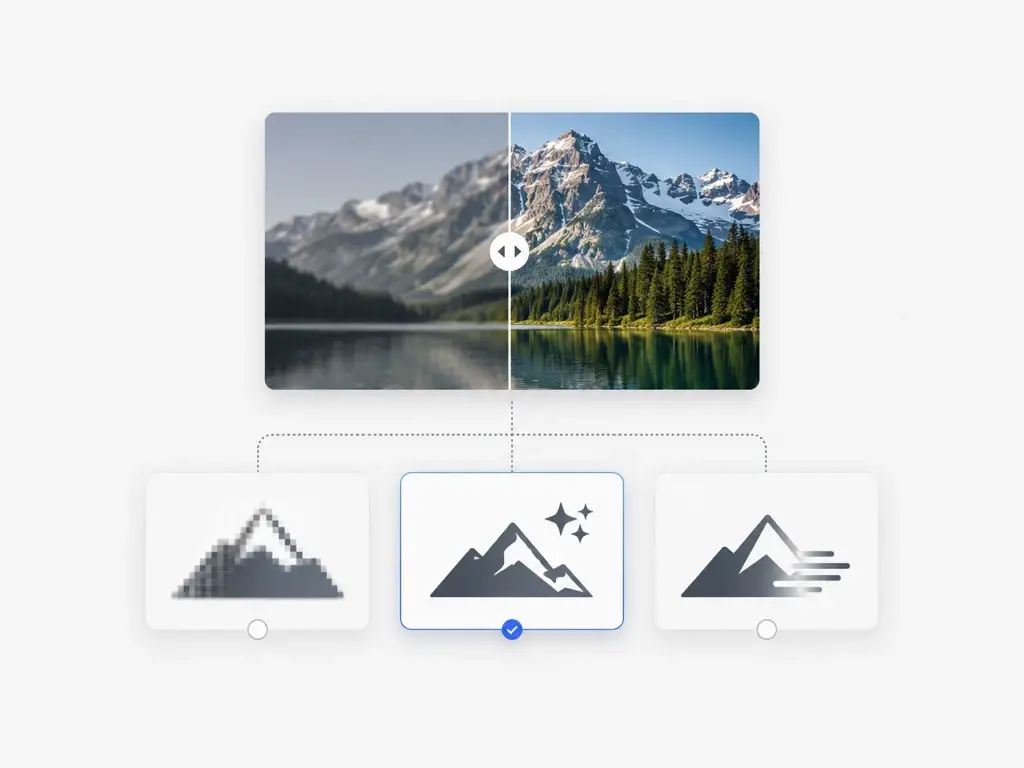
By default the video enhancer picks the right Topaz model and sets up upscaling, frame smoothing, and noise cleanup for you. If you want more say, choose a model by hand, or pick your use case and let UpscaleAI fill in fitting settings so you can upscale video without tuning every option.
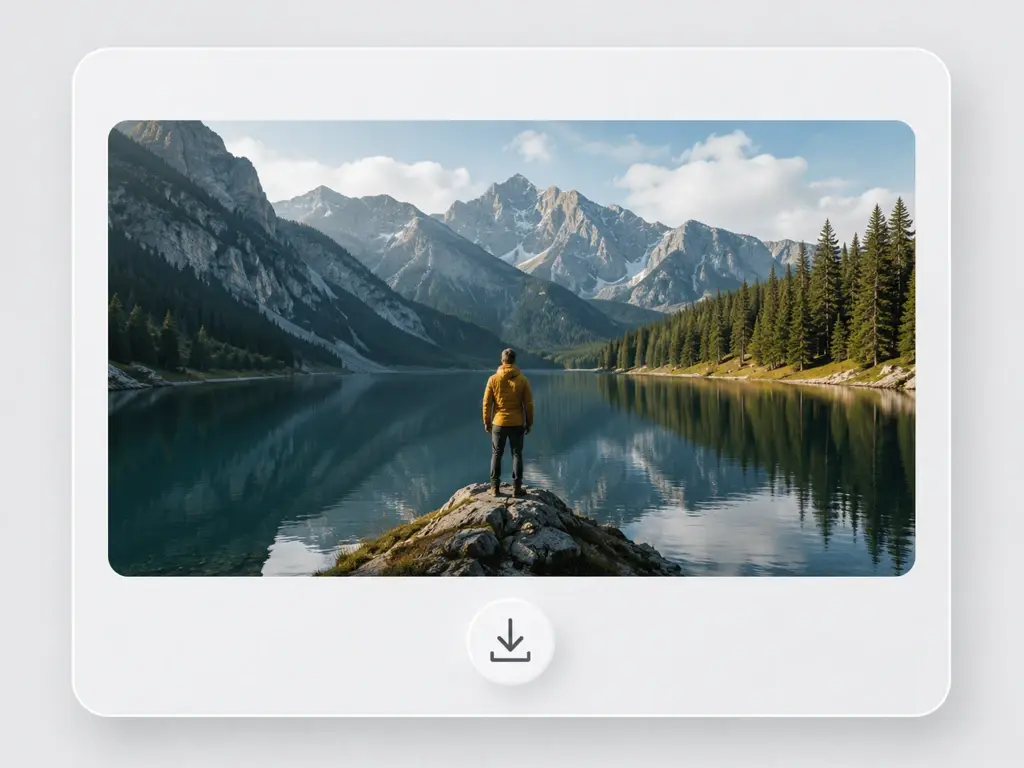
Press start, watch the clip render up to 4K with optional 60fps motion, and preview it before you commit. When the frame looks right, download the finished video; if it does not, adjust the model or scene and run it through the video enhancer again. Your upload and the finished file stay in your account space under Assets and My works, so the job is there whenever you want to open it again or download another copy.
Real situations where cleaner, higher resolution footage actually matters.
Old family footage pulled off VHS or a phone recording tends to look soft, dim, and speckled with grain. Running it through the video enhancer lifts it toward 4K, cuts the noise, and rebuilds detail so the faces of relatives stay legible for the archive. Choose this video enhancer when the goal is preserving memories at a higher resolution.
Screen captures often get crushed by recording bitrate, so the action turns mushy and the frame rate stutters. Here you sharpen the capture and smooth motion to 60fps before upload, which makes a montage or stream clip read far cleaner. This video enhancer is the pick for players who want footage that looks crisp on a big display.
A short video that has been reshared and compressed again across apps loses its edges and picks up blocky patches. Feed that clip back in, raise it toward 4K, and clear the artifacts so it looks presentable before the next post. This video enhancer suits reels and shorts that degraded after several rounds of uploading.
Interview or talk footage shot on older cameras can look low resolution next to today's screens. Upload the recording and let the video enhancer increase video quality, tighten facial detail, and lift it toward 4K so a republished episode holds attention. Reach for this video enhancer when reviving back catalog videos for a new audience.
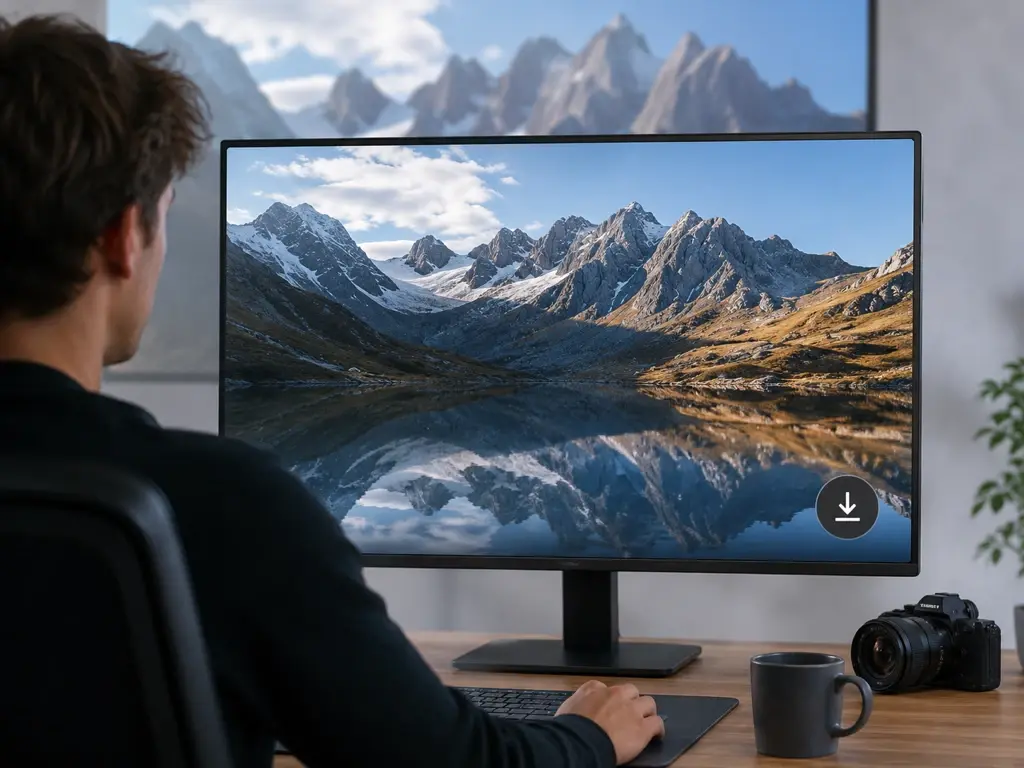
If you publish regularly, low resolution or compressed source clips drag down an otherwise good video. UpscaleAI lets you upscale video to 4k and make video higher quality before upload, so your channel keeps a consistent, sharp look without reshooting anything.
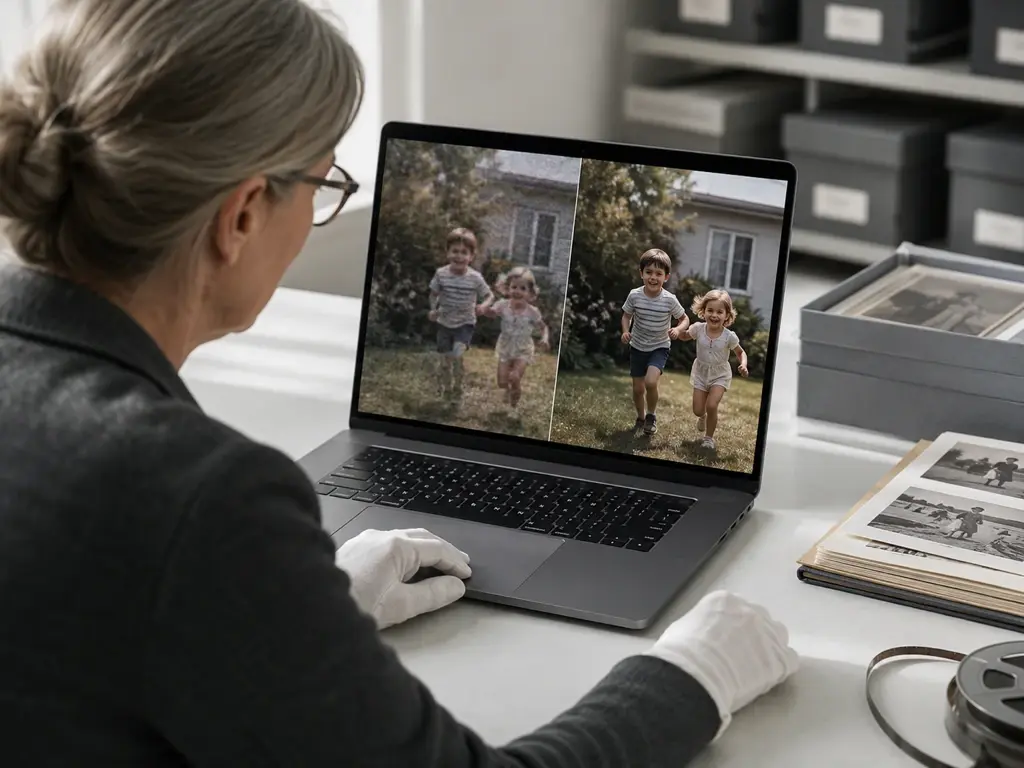
For anyone digitizing a shelf of old tapes, the goal is legible, lasting copies. This video enhancer upscales and denoises aging home recordings so faces and places stay clear, giving you an archive that reads well on modern screens.
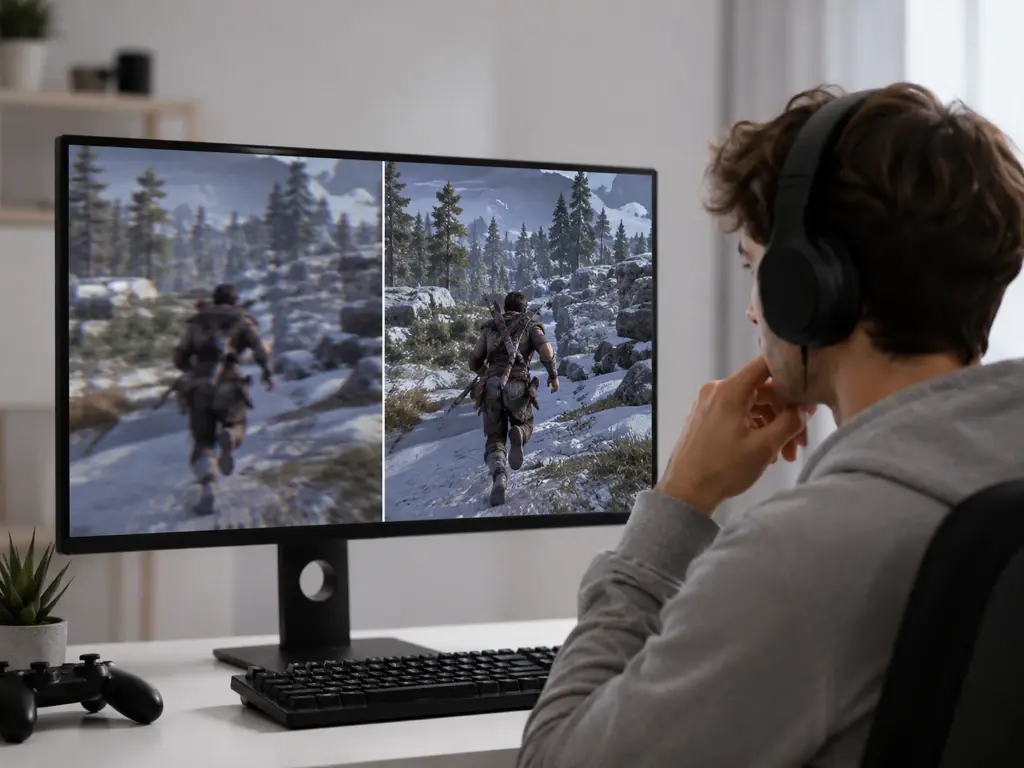
Streamers who repost highlights need footage that survives another round of platform compression. The online video enhancer sharpens your capture and smooths it to 60fps, so a clip still looks crisp after it is uploaded and encoded again.
Upload one clip and see how the video enhancer rebuilds it into a cleaner 4K version.